Before you sell or recycle an iPad, back it up, remove it from your Apple ID and erase it. Removing it from your Apple ID turns off Activation Lock, which otherwise stops anyone else from using the iPad. The steps are the same for iPad, iPad Air, iPad mini and iPad Pro.
1. Back up
Go to Settings → [your name] → iCloud → iCloud Backup → Back Up Now, or back up to a computer with Finder or the Apple Devices app.
2. Unpair accessories
In Settings → Bluetooth, tap the info button next to your Apple Pencil or keyboard and choose Forget This Device.
3. Sign out of your Apple ID
Go to Settings → [your name] → Sign Out and enter your Apple ID password. This turns off Find My iPad and Activation Lock.
4. Erase the iPad
Go to Settings → General → Transfer or Reset iPad → Erase All Content and Settings. On a cellular iPad with an eSIM, choose to erase it unless you are moving the plan. Confirm with your passcode. When the iPad shows "Hello", it is ready.
Cracked or unresponsive screen?
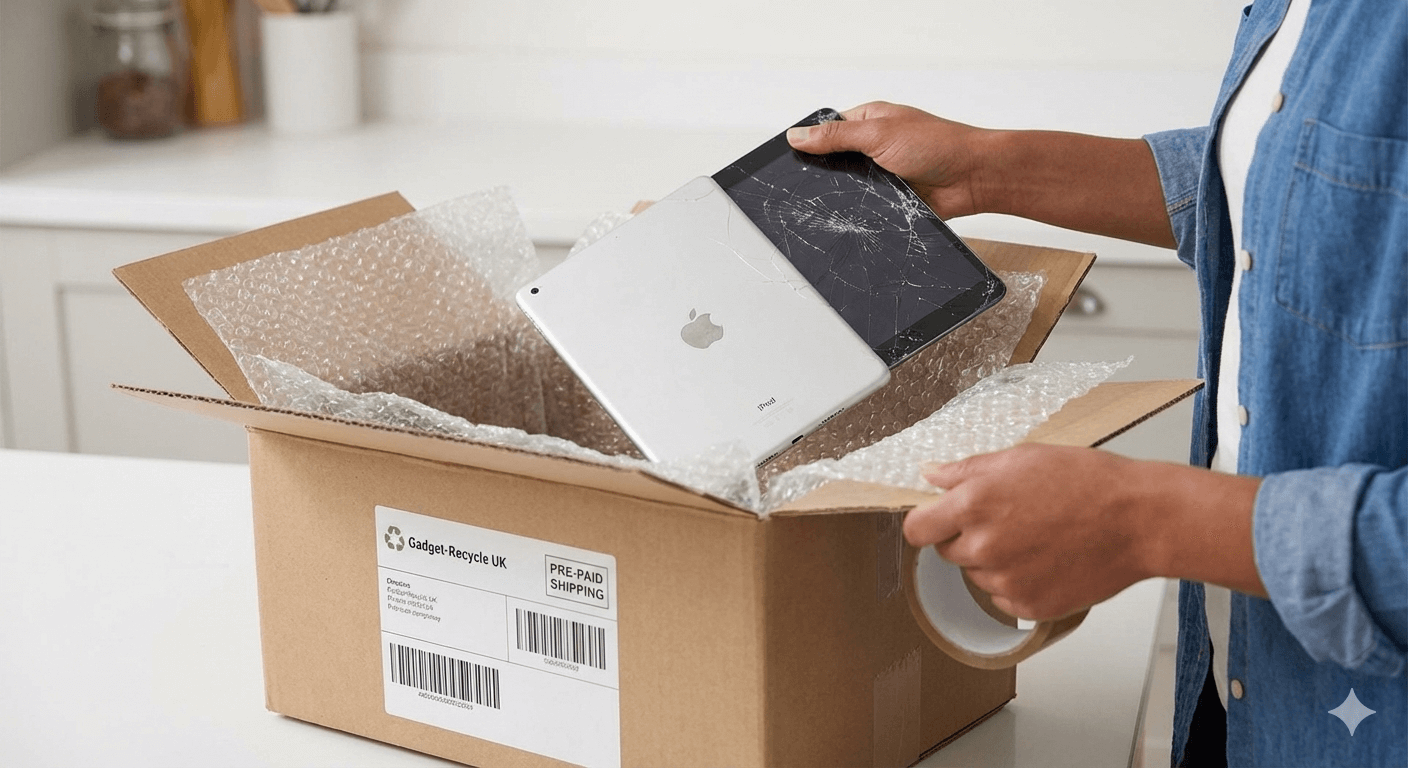
Sign in at iCloud.com/find, choose the iPad from All Devices, select Erase This Device, then Remove This Device. A cracked or faulty iPad still has value: see sell a broken iPad.
Checklist
- Backed up
- Apple Pencil and keyboard unpaired
- Signed out of Apple ID: Activation Lock off
- Erased: iPad shows "Hello"
- SIM removed (cellular models)
Get your price on the Sell My iPad page. Need help with Activation Lock? See how to remove Activation Lock from an iPad.